

Declutter Your Photos Library in 2 Minutes Flat
WHAT THE IPHONE HOME SCREEN CAN TEACH US ABOUT BETTER PHOTO MANAGEMENT


I have 140 apps on my iPhone Home Screen. Not the total of all my screens, mind you, just the Home Screen I see when I unlock my phone.
These are the “most important” apps I have. The ones I use every day or so. Supposedly. Most are nested inside groups like Utilities or Fitness. And my Photography related groups are many. Edit apps. Organizing apps. Sharing apps. And so on. Some of those had to go on page 2 or 3 of my display along with the groups for Music, Travel, Audio, News. Plus all the random apps that have just downloaded to the first available space.
You get the idea.
Over the years of sampling and testing new apps my iPhone screen layout has grown to a dozen pages. Most of those apps are never used. Even my Home Screen favs. I just downloaded the Waymo App on our trip to San Francisco. By the next time I use that - when I find it - it will have forgotten who I am. But it’s there somewhere, adding clutter.
Honk if that’s you too.
You’re probably wondering what this has to do with the clutter in your Photos Library.
Well, Apple seems to have recognized the craziness of the whole Home Screen app clutter and added an App Library a couple years ago. If you swipe past all your app pages you will find it at the end. It shows every app you have installed, automatically organized in groups, including Suggestions - based on your usage, I assume - and Recently Added.
Doggone. There’s Waymo.
If you prefer, you can search on the app name or scroll down an alphabetical list. It’s all there.
To sweeten the deal, if you long-press on the Home Screen you can choose Edit and hide every unnecessary page. In my iPhone I now have the Home Screen, one more page of second-tier apps, and the App Library. My next move will be to purge about 120 of those never-used apps that are still buried on the Home Screen and just find them as needed on page 2 or in the App Library.
Cleaner. Simpler. No more clutter.
Apple Photos is the same thing.
For decades we’ve swiped through an ever growing collection of images in the Camera Roll/Library. It is auto-sorted by date, but it’s also littered with screenshots, reminder shots, and the fact that more images appear daily. For any picture older than a few days it’s a tedious way to find the one you want. Just like it was for apps on the iPhone displays.
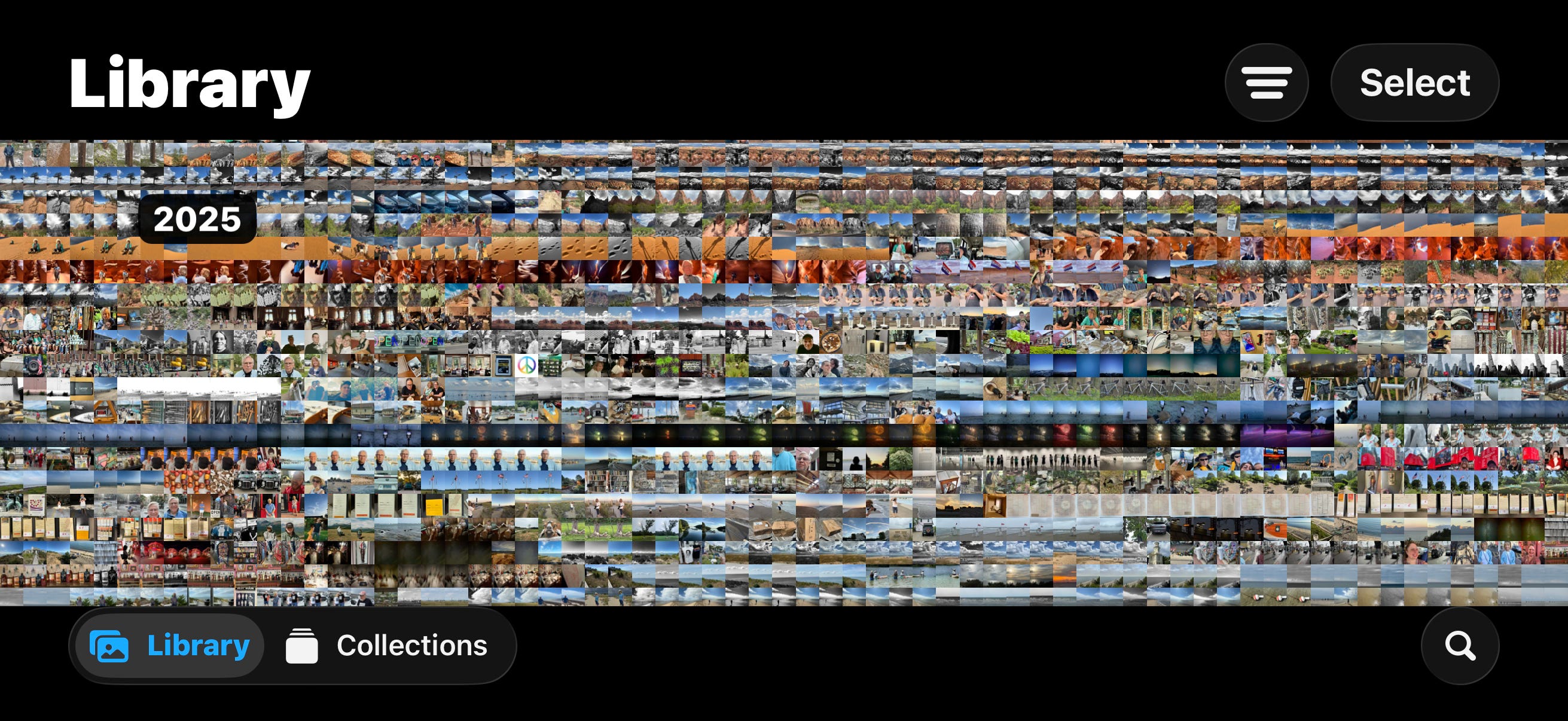
With the new iOS 26, Collections solves that clutter in an App Library kind of way.
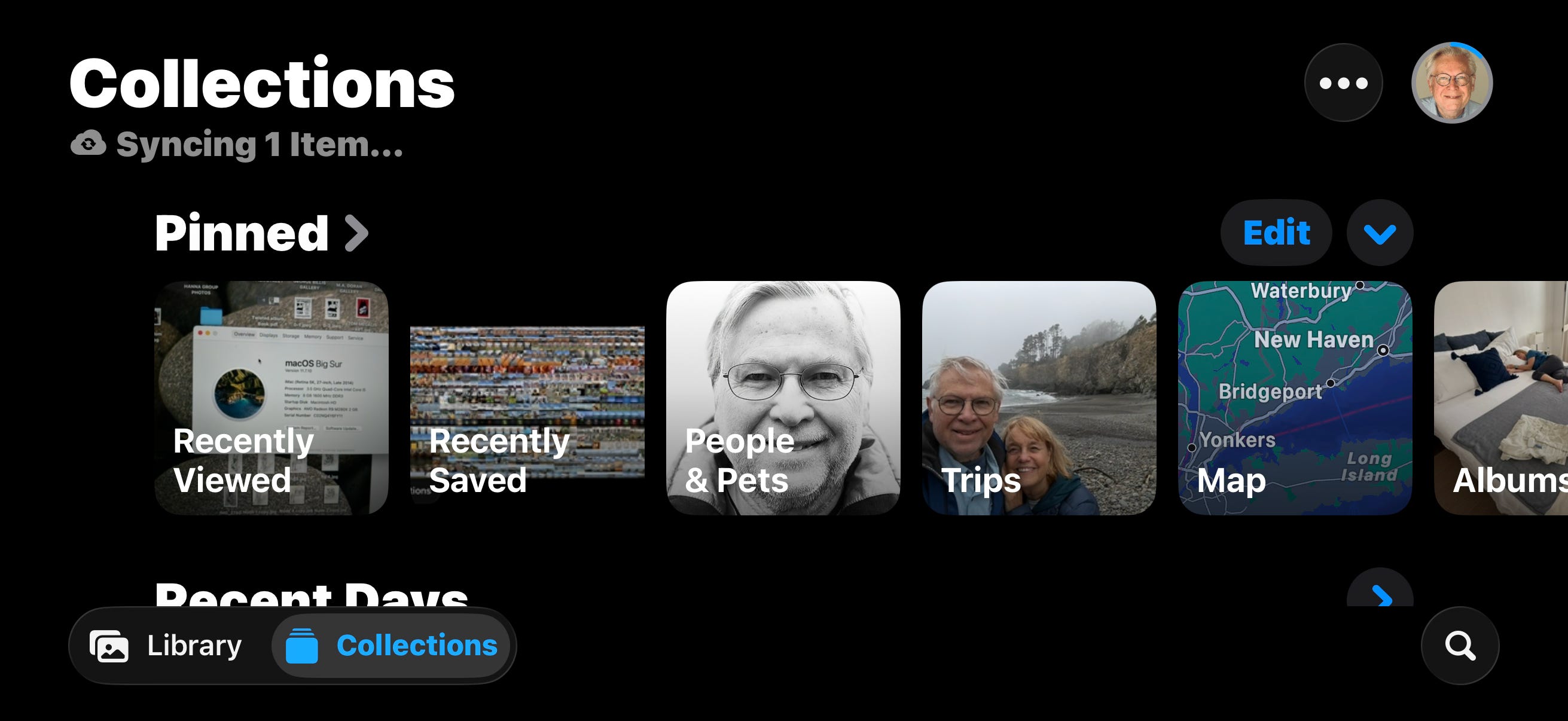
Like the App Library, Collections offers a Recently Saved grouping. As well as Recently Viewed, Recently Shared, and Recently Edited. It parses your Library down into Recent Days and auto-detects Trips you’ve taken. Because it has object and face recognition, Photos offers Collections for Screenshots, Documents, Illustrations, and even QR codes we’ve taken. With just a bit of setup you can quickly find pictures of people and pets you want.
The common theme here is that with both the iPhone Home Screen and in Apple Photos, we save time and frustration by narrowing down choices to a relevant selection. Much easier to find that picture in a 40 image group than among 30,000.
A great example of this is the streaming services we use every day. By some estimates, Netflix has about 7000 titles in their catalog, but we never see that. We are offered content based on our viewing habits - what’s new, what’s popular, Watch Again, Action, Adventure, Romance, and so on. The only way we access the whole catalog is to create our own watch list or by doing a search based on some criteria like an actor or title. Scrolling through the entire Netflix catalog would be a nightmare.
Apple Photos does the same thing. By going to a relevant Collection instead of browsing through the Library we can quickly narrow our choices to photos that contain the one we’re looking for.
Clutter is about distraction.
Decluttering is about focus.
The heart of the matter is that clutter is relevant only to the extent that it gets in the way of finding photos or apps or movies that you want.
Improve focus and you reduce clutter.
And you can do that in under 2 minutes.
Set up your top dozen chums in People & Pets.
Make a custom Memory or two for your favorite shareable events/moments.
Favorite a few random shots that you love.
Time!
As long as you stay in the Collections view, you can find anything. To get really granular, you can even Search within a Collection.
But old habits are hard to break; I know.
If you find yourself back in the Library view, at least get in the habit of starting with Years and Months to narrow your task. Then you’ll be close to your destination.
What about ‘actual’ clutter I hear you say. The ’get rid of it’ kind of clutter.
First of all, if you embrace the Collections + Search relationship with Apple Photos, you just aren’t going to see the clutter that’s so obvious in your All Photos Library view. Documents, screenshots and poor quality photos are filtered out of the Summary View in most Collections.
Also, what constitutes clutter is matter of circumstance. Screenshots are clutter until you want to find a screenshot. Gallery art is clutter until you want to visualize it on your living room wall. In the digital universe clutter is not so much a thing as it is a relationship. And that relationship is fluid.
Sure, are there images that don’t belong? Have served their purpose? Just plain bad? You bet. But that’s a housekeeping problem. Tidying up. Taking out the garbage. Reorganizing bookshelves.
The fact is that while we may aspire to Mid-Century Modern, what we have is The American Museum of Natural History where exhibits come and go. Priceless artifacts get tucked away for years. An overlooked object unlocks history.
We just need a floor map to find the pictures we’re looking for today.
Collections.
For most of us the convenience and utility of iPhone photography just naturally creates a random and diverse photo library unlike anything before. Everything we remember of photo albums, slide carousels, and carefully paced 24 frame film photography has changed. Our Photo Libraries are living documents that reflect our lives in rich new ways. Sifting through that effectively requires using the rich new techniques that come with it.
My challenge is that you live on the Collections page for a week and see how you like it. Let me know what you think and what you discover in the post comments. I really want to know.
On iOS 26 you will see the choice between Library and Collections at the bottom left of the iPhone Photos Home Screen. Once you choose the Collections view Photos will reopen to that whenever you launch.
If you are still on iOS 18, you’ll see all the Collections below the Library on the Photos Home Screen.
And here’s a tip.
Once you try the different Collection views you will find some that work best for you. Maybe you are always looking for Recently Viewed. Or you usually go to a child in People & Pets. It could be Trips you went on. Could be you check a Shared Album every day for new photos.
Whatever it is, Photos lets you move that right to the top so you are just two taps away from the pictures you enjoy the most. Really.
I think you’ll love it.
And swiping through all the clutter will be a thing of the past.
Now go back and take a look at that iPhone Home Screen.

This is the way forward for Apple Photos. Our Libraries get larger. The iPhone gets smarter. It’s time to learn a powerful new way to find the photos and videos we want to enjoy and share.
Never before have we been able to customize the Photos app like professional photographers do in Photoshop, Lightroom, and Capture One. There’s no longer a need to scroll through years of pictures to find the one you want.
If you want to know more about Collections and how to customize your Apple Photos experience, you’ll want to check out my course:
FIND YOUR PHOTOS FAST: HOW TO USE THE NEW APPLE PHOTOS ON IPHONE.
This easy course goes through details about each of the new Collections and how to use them to declutter your Photos navigation and find the photos you want fast.
Before dinner is over and the conversation has moved on.
You know?